
QUICK TIPS WHEN DESIGNING FOR ANY DECORATION METHOD
All images courtesy Dane Clement.
Before even starting your design, there are some basic things to consider. By gathering all the necessary information upfront, it will help reduce or eliminate the number of headaches that come up later causing you to make unnecessary adjustments to the layout. Here are my main tips that I think every designer should consider when creating a design for apparel decorating.
PENCIL SKETCHES

While this might not necessarily be the first step, it is one I consider the most important, which is why I mention it first. It was a tip taught to me by my professor back in art school that has stuck with me through all these years, and it is something I still do to this day.
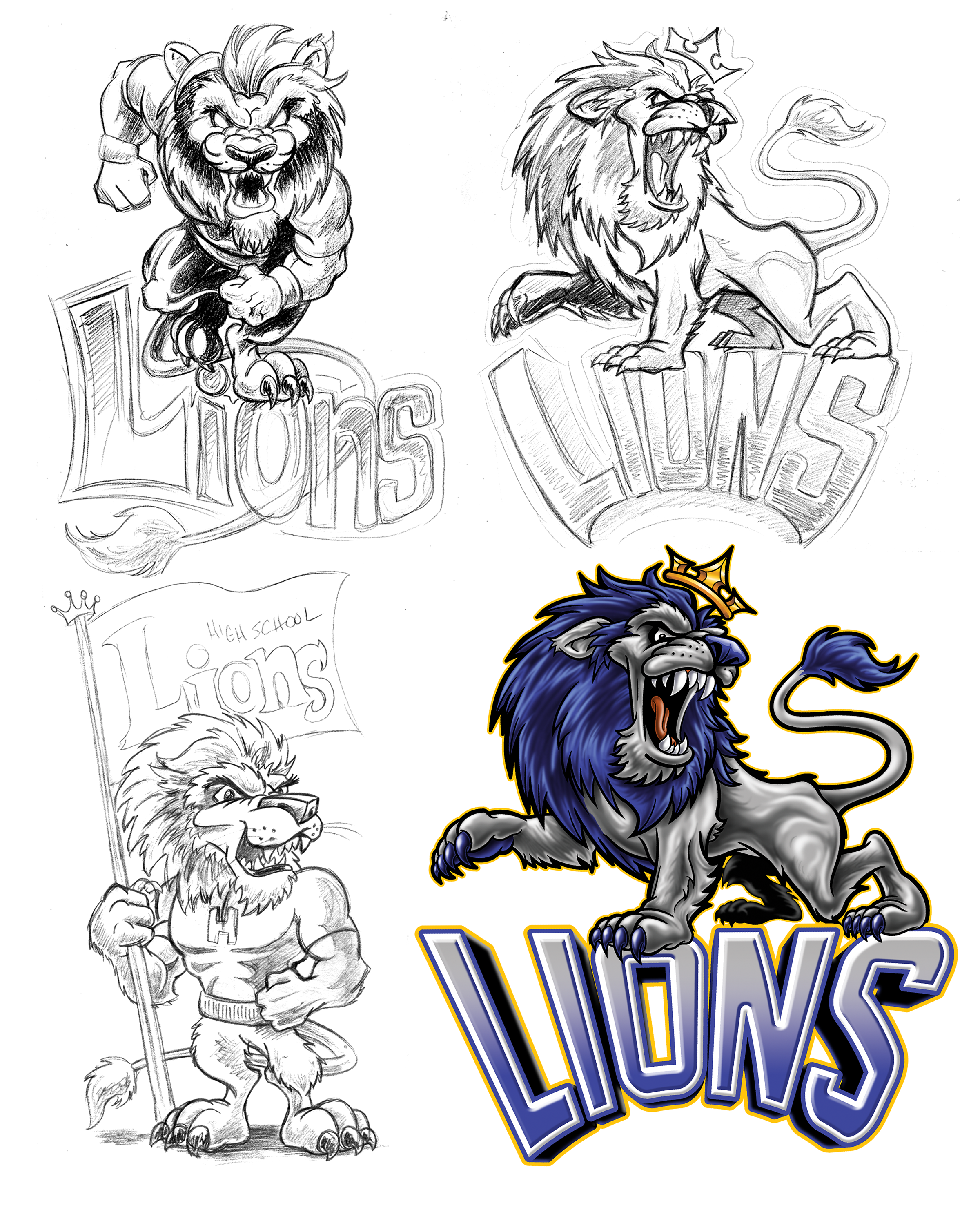
Staring at a blank screen or paper can be daunting. Doing some quick, small, pencil thumbnail sketches can help you get ideas out of your head and down on paper to get you going (Image 1). They don’t need to be tight drawings, just get the general idea of the placement of all the elements that need to be included in the layout. You can sketch on paper, or you can use an iPad like I do. You can then bring the chosen sketch into your computer when you are ready to create the layout and place it in the background for reference.
Pencil sketches are also a good way to start with your customer. I’ll create a couple of concept sketches and show them to a client to select from and approve. While you’ll probably need to create tighter drawings than thumbnails for customers to see your vision, if they have any changes, you can make them at this point before getting too far into the design. It’s a lot easier to make changes at the pencil sketch stage than after you’ve completed the entire layout (Image 2).
WHAT WILL THE DESIGN INCLUDE?
Find out everything that the customer wants to include in the layout. What will the main image consist of? Do they have reference photos of elements that they want in the design? What text do they want to include: heading, locations, dates? Any logos? Knowing everything that needs to be included in the layout will help you when you start your thumbnails or pencil sketches. If you get started on a whim without having all the details, you’ll find yourself making more changes than needed, wasting time and money.
DESIGN SIZE
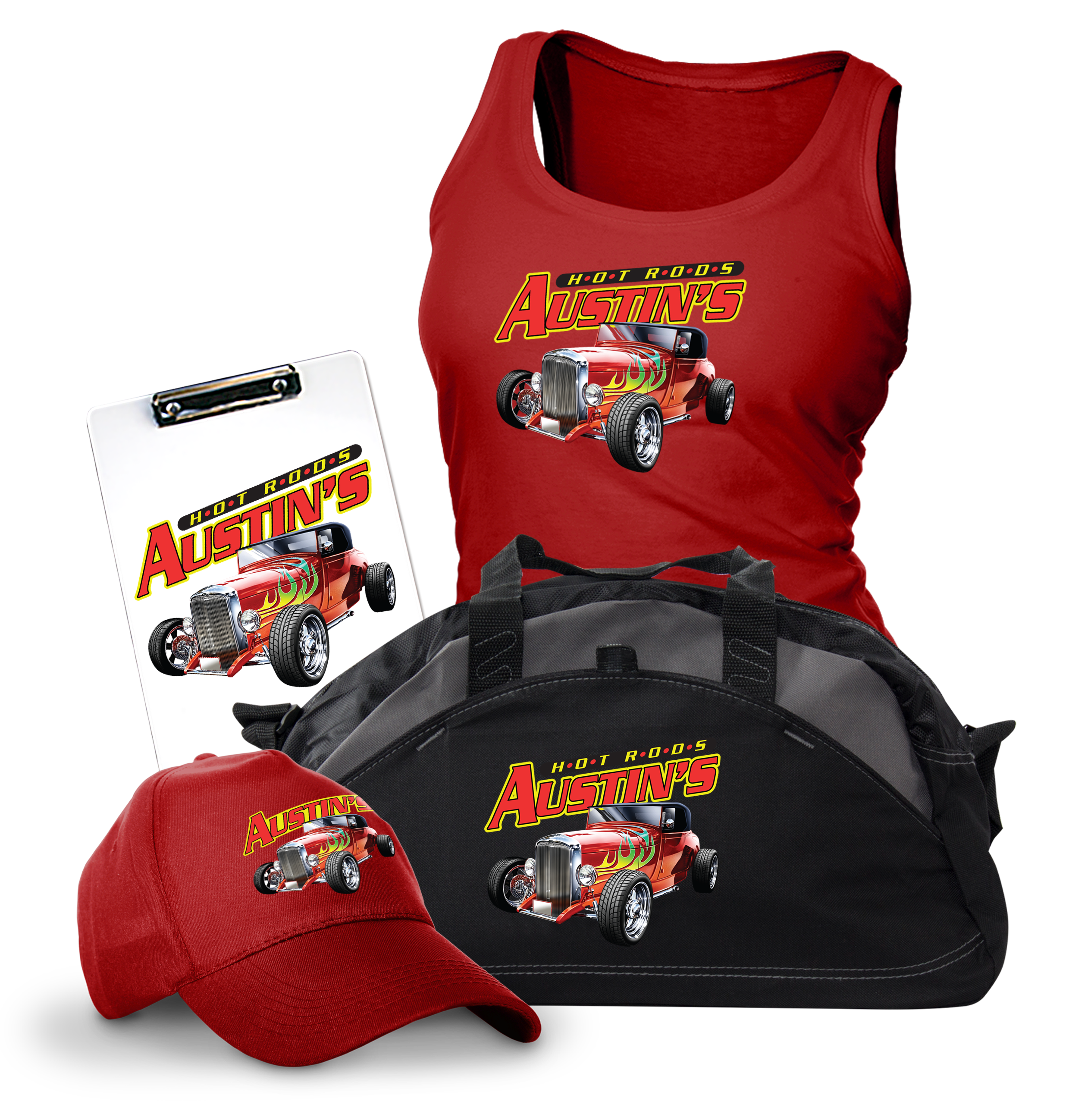
What products will this design be going on? T-shirts, mugs, totes? Left chest, full back? Adult size, youth size (Image 3)? If it’s going on multiple items, create the layout at the dimensions of the largest object first. While this isn’t necessarily an issue for vector artwork that can be enlarged without losing quality, it is important to know for raster artwork that will be created in a program like Photoshop.
Starting with a layout for a mug or left chest and then resizing it for a full back will not work. When raster artwork is enlarged significantly, it becomes blurry and pixelated, resulting in a poor print, or requiring an extra step utilizing an up-scaler application. While these work great, it’s another unnecessary step in the process.
With that being said, depending on the details in an image, small type, or thin lines can be an issue when reducing an image. For example, vinyl cut images that are reduced may create lines or gaps that are too small to cut and weed. Details like thin or small type can become too small for DTF transfers to hold the adhesive powder that makes the design stick to the shirt. These areas will end up falling off the shirt when washed or applied.
Keep this in mind when reducing your images for smaller sizes and adjust as needed to thicken or enlarge smaller details and type so they work for reduced sizes.
HOW WILL THE DESIGN BE REPRODUCED?
Will it be screen printed? Will it be vinyl cut? Will it be printed digitally? DTG? DTF? Or maybe even multiple methods will be used for various products. Knowing this information affects how you create your design.
There are two types of artwork: vector and raster. If you are doing vinyl cutting, you can only use vector art. The cutter requires vector art because it reads the points and paths that create the design to know where to cut.
Screen printing and digital printing can use both types. When it comes to screen printing, if you use vector artwork, set your colors up as spot colors. This allows you to print out each color individually as its own separation for making screens. If you use raster artwork, you need to separate your design either manually or using separation software. If you know it’s going to be screen printed, be aware of the number of colors used in the design. When you create your separated file, you can make sure to use the appropriate number of colors.
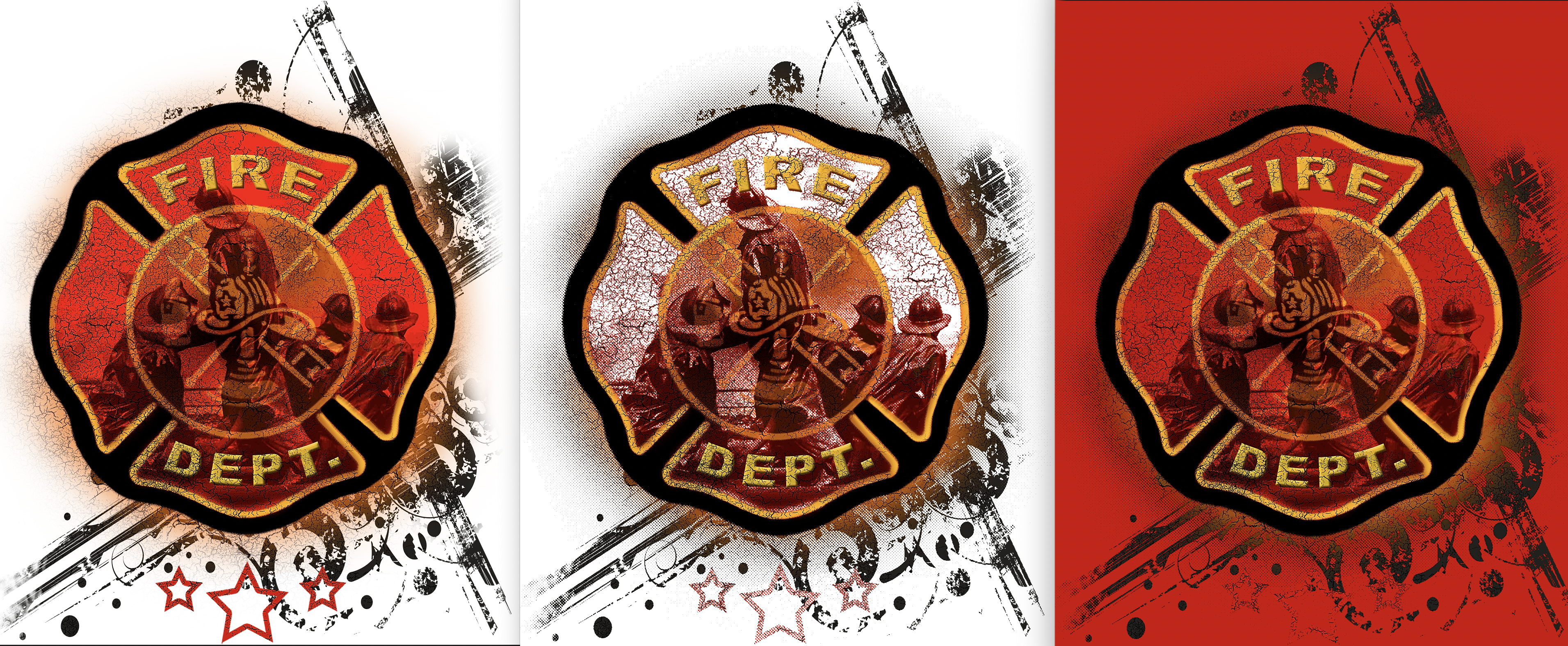
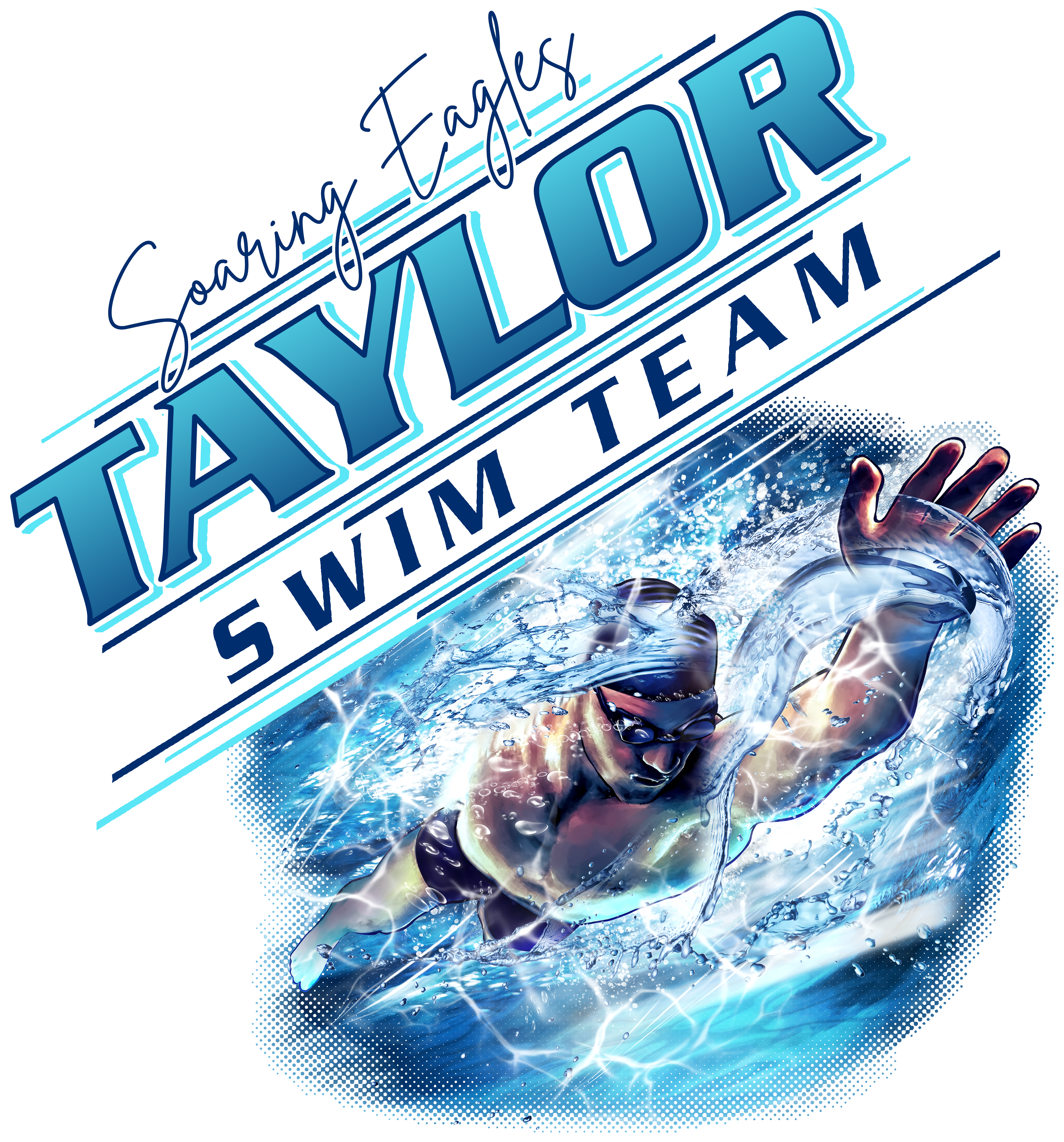
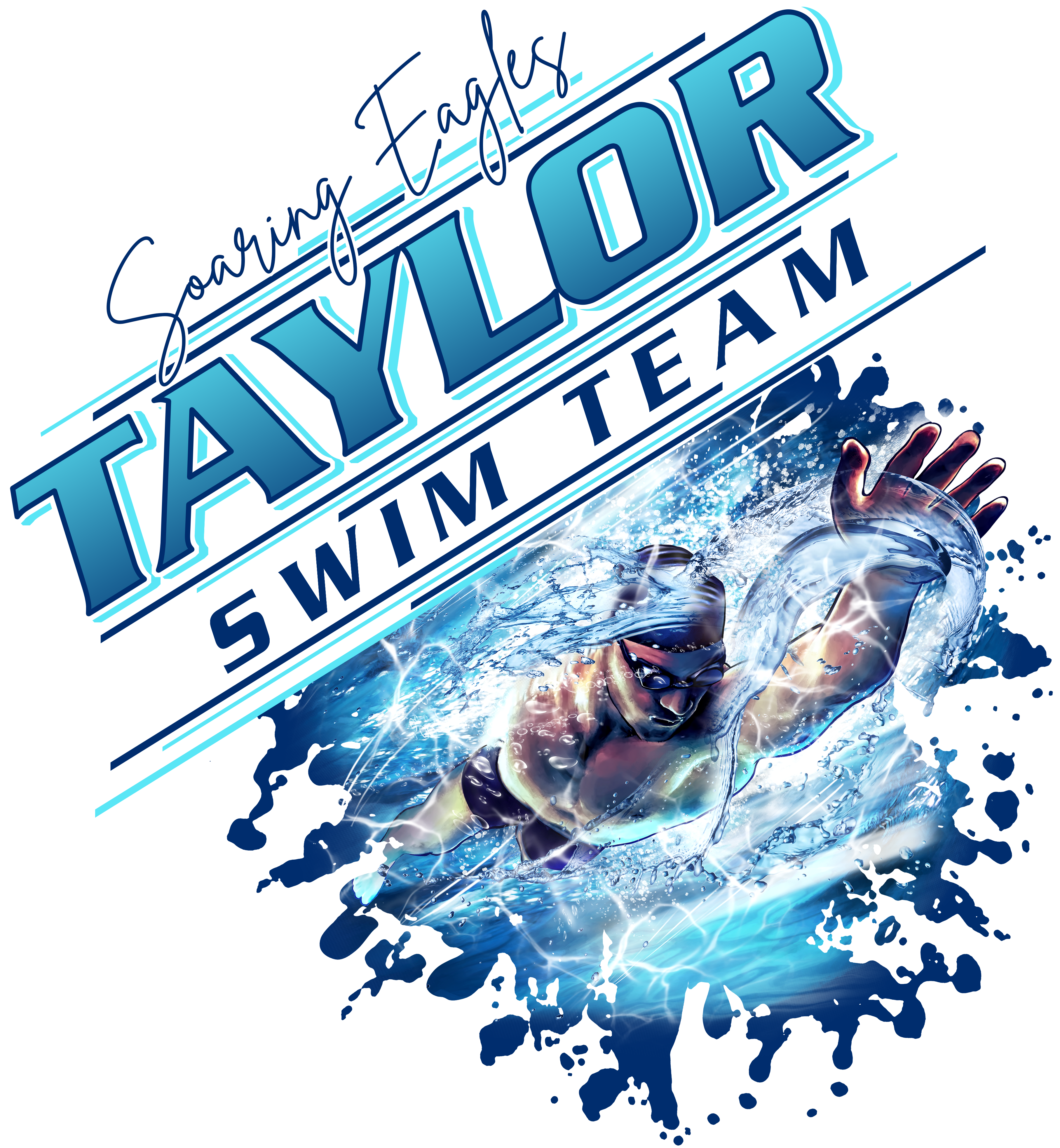
Requirements for digitally printed designs differ from method to method. For example, DTG designs can have faded edges (Image 4). DTF transfers cannot, so the design will have to be set up in a way that works for that method (Images 5 and 6). Knowing how the art will be reproduced from the beginning and being aware of the restrictions and specifications of the method that will be used allows you to create the best layout possible within those restrictions and allows for smoother, quicker production and superior products.
ALL THINGS COLOR
Depending on the production method being used, color plays a factor in many ways. Can you print in full-color, or are you limited? If you’re printing digitally, then the number of colors isn’t an issue. If you’re screen printing, knowing how many colors you can print will play a factor in how you create and color your design. You don’t want to put colors in your design if you don’t have room for them or can’t recreate them using other ink colors.
For example, if your image has red, blue, gold, orange, and green in it, but you can only print three of those ink colors, you can still use orange and green in your design. They will be reproduced using the red and gold to create the orange, and the gold and blue for the green. Knowing your color limitations up front is important.
The color of the shirt or substrate that you will print on can also play a factor in how you color your design. For example, if you will screen print the design, and you know you will print on only a white or black shirt, then you can eliminate either the black or white ink from your color count.
If you’re using DTF or white toner transfers, knowing the shirt color can help you reduce the hand on the shirt by knocking out the areas in a design that match the shirt. If you’re printing on a red shirt, then you can knock out any red that may be in the design (Image 7). This makes the transfer feel lighter when applied to the garment.
When it comes to dye-sublimation, you can’t print white ink. So, if you have a dark-colored shirt, it won’t work. Any white areas in the design will not print, and the shirt color will show through. Therefore, only white or light-colored garments are recommended. Knowing the shirt color ahead of time can help you create your design accordingly to work for the method you use.
Sometimes you may be required to print a specific color. If your design includes a corporate logo for instance, they may be very particular about the colors of their logo. In cases like this, you’ll want to ask them for the specific Pantone colors. You can then refer to a Pantone chart to make sure the printed color matches their specified color.
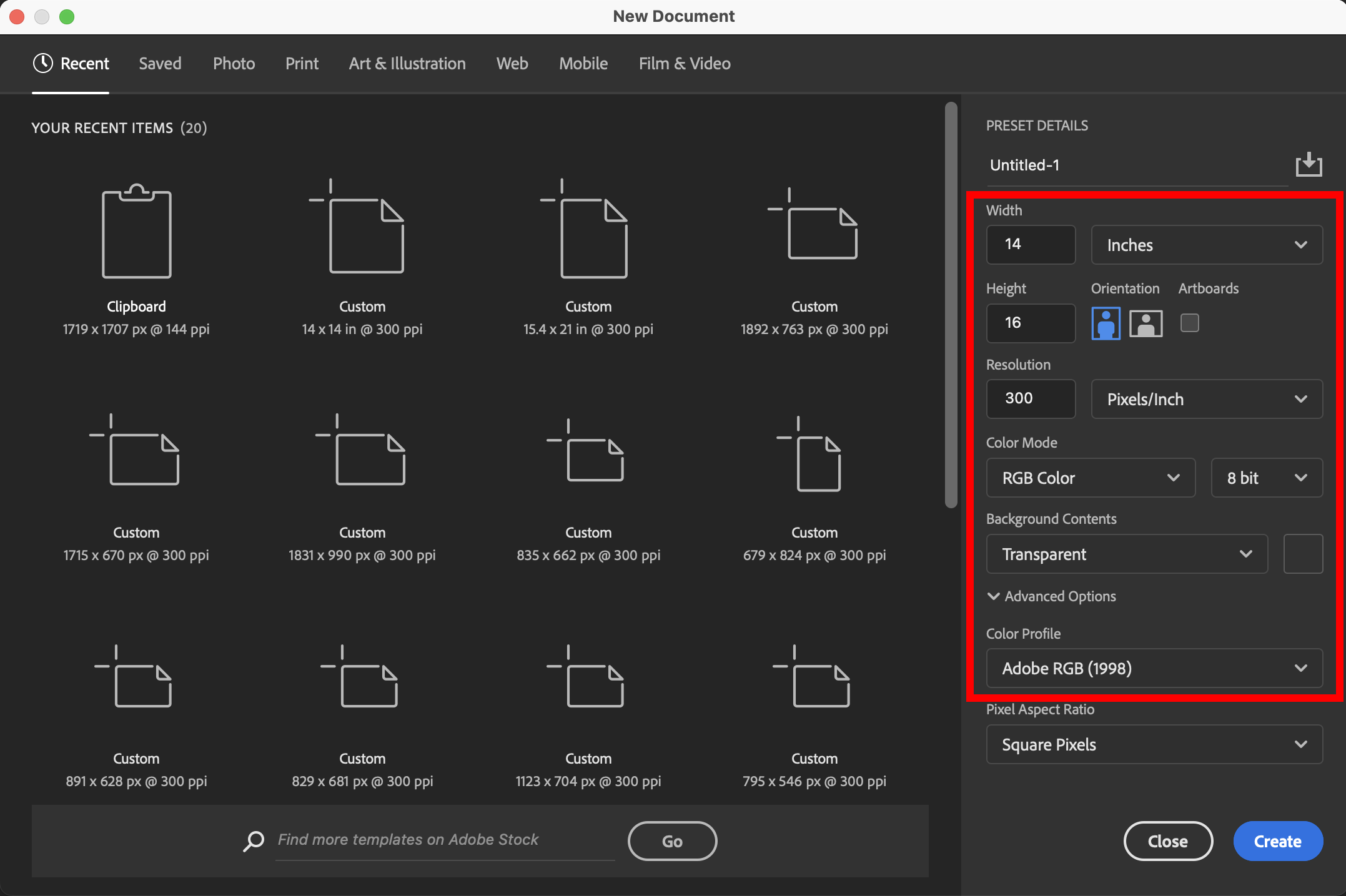
Once you’ve gathered all the initial information you need so you know how to approach your design, and you’ve worked up some thumbnails, you’re ready to begin your layout. When setting up your file, here are some things to consider (Image 8).
RESOLUTION
As mentioned above, when it comes to raster artwork, the size you start your design at makes a difference. Resolution works hand-in-hand with sizing your file. When I set up my files, I start with the dimensions of my largest image first with a resolution of 300 pixels per inch (PPI). The higher the resolution, the better the quality; however, the larger the file size as well.
For garment decorating, 300 PPI is more than enough to give you good-quality results without making the file size unmanageable. This is why simply grabbing an image from a website is not recommended for printing. Those images are usually much smaller in size with a resolution of only about 72 PPI, so printed results would be very unsatisfactory.
COLOR MODES AND PROFILES
When setting up your files, make sure you choose the appropriate color mode and profile. I generally use RGB mode and the Adobe RGB (1998) color profile. RGB has a much larger color spectrum than CMYK, allowing you to start an image using the widest range of colors possible. The Adobe RGB (1998) color profile provides richer, truer blacks. Granted most digital printers print using CMYK inks, but by starting out with RGB, when the file goes to print, the printer will be provided with the most color information possible, which will then be translated by the RIP software or printer driver into CYMK to print on the substrate.
This will allow your final print to be the best it can be. While most printers will accept RGB files, there are some that may require CMYK files to print. It’s always best to check with your printer to see what is required, so you can save a separate print file in the appropriate format that works with your printer.
TRANSPARENCY
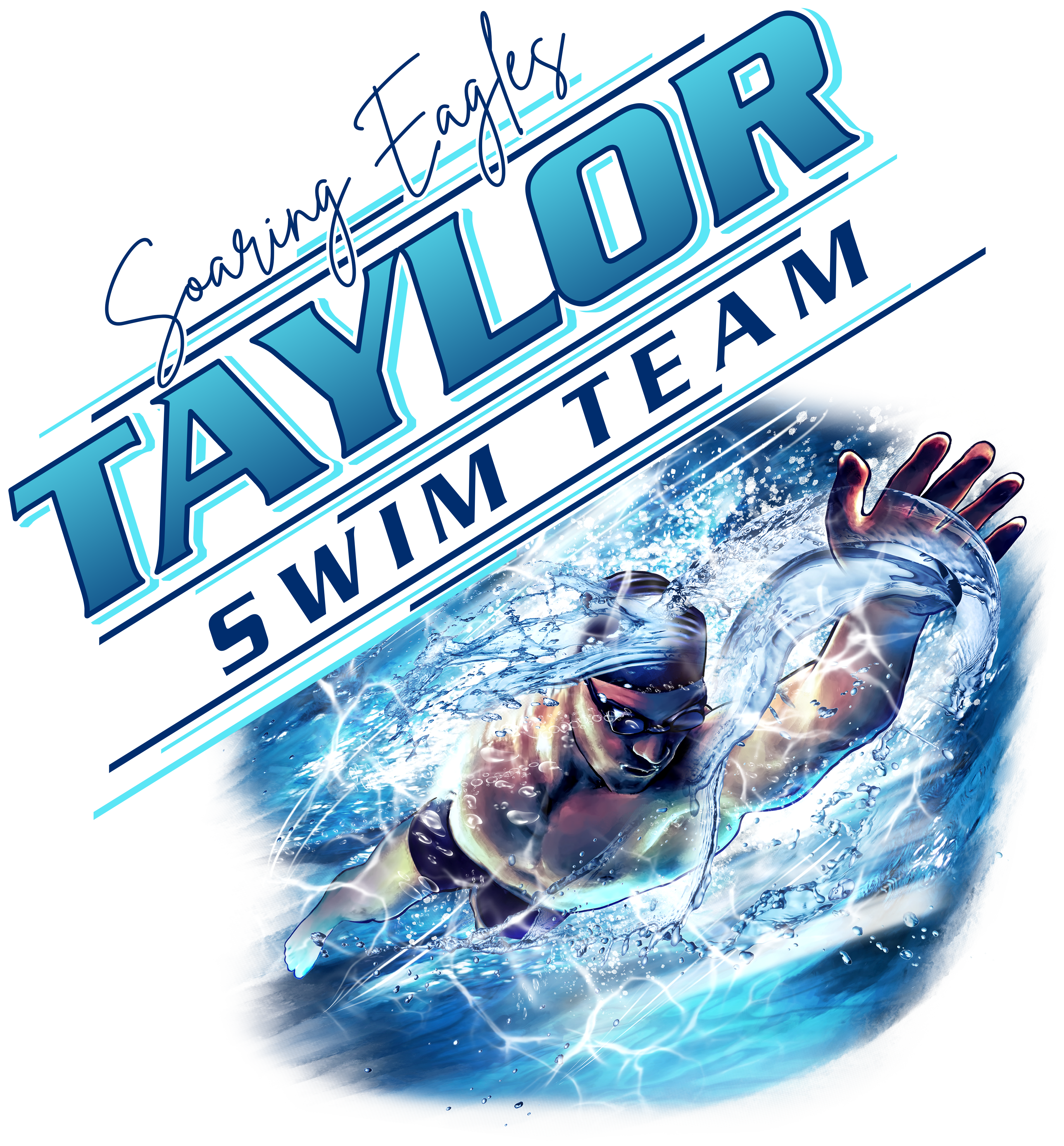
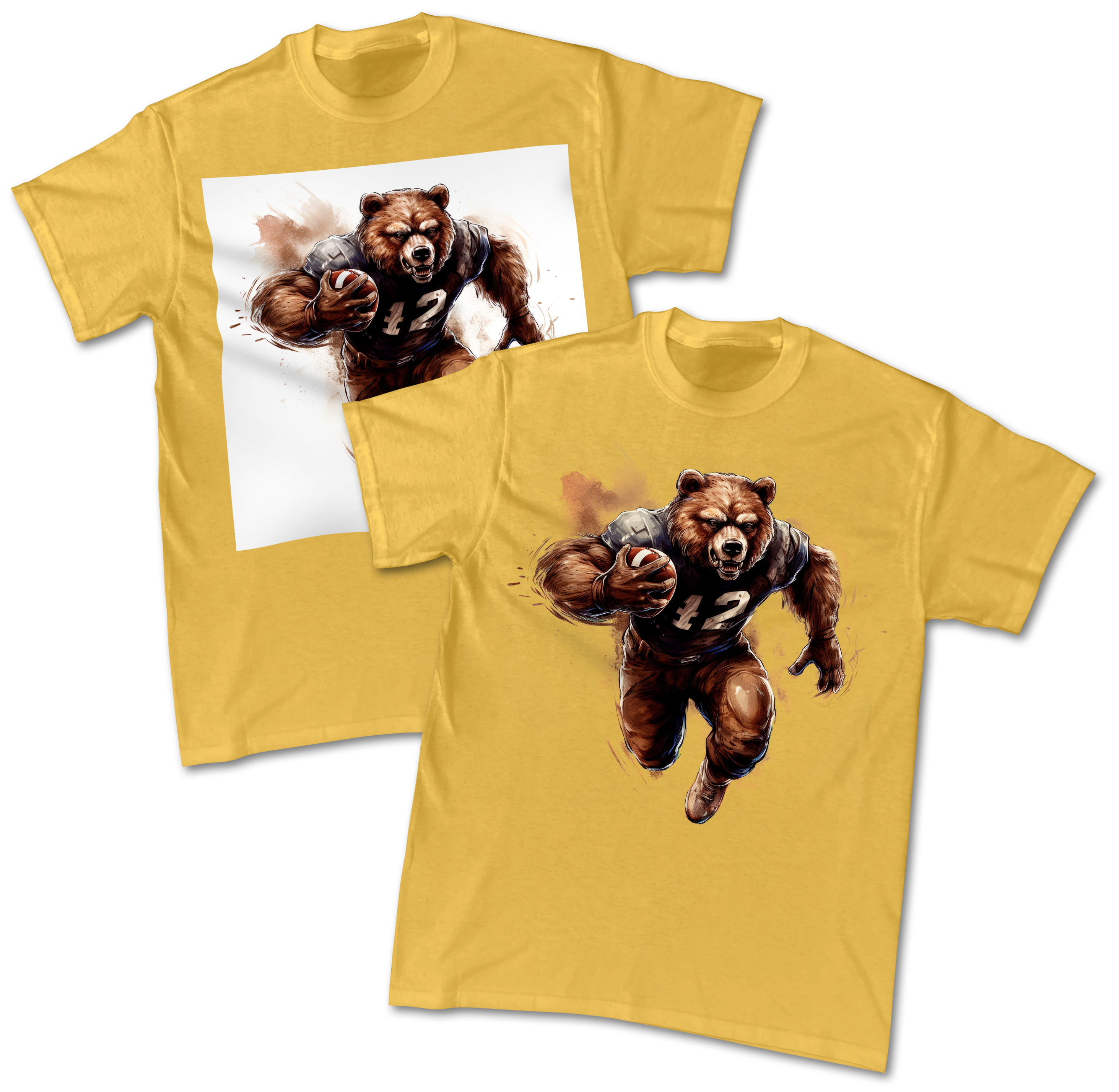
Regardless of the printing method you will use, creating your raster artwork on a transparent background is essential. If your image is flattened on a background, whether it’s white, black, gray, or whatever, the background will end up printing as well (Image 9).
While dye-sublimation can’t print white ink, an image flattened on a white background won’t be an issue here, but this is not the case with other methods. A DTG print of an image flattened on white background will end up giving you a big white rectangle in the background, or separations for screen printing will include the information on the base white and possibly a highlight white. So, starting off with a transparent background will save you a lot of time and trouble in the long run. If not, you’ll be spending time extracting the artwork from the background, and depending on the art itself, it can be a tedious process.
Unfortunately, with AI-generated artwork, you don’t always get the luxury of creating on a transparent background. Most images are usually flattened. At the time of this writing, the only AI artwork generator I know of that is starting to support transparency is Leonardo.ai. So be aware, and make sure to account for the extra time needed to extract your image when using AI.
Once you’ve completed your image, here are some other routine things to do to finalize your design.
SAVING THE FINAL FILE
Once your layout is complete, save a final file in the format appropriate for the production method you will use. I always recommend saving your layered, working file so that you have it in case you need to make any changes in the future. Then you can delete any background color layer you may have included, merge all the other layers, and save your final production file as needed. In general, I usually save my final files as PNGs. It is a widely used format that most production methods will accept. However, there are some exceptions, and if you are subcontracting the job out to someone else to print, check with them to see what they require.
OPTIMIZING YOUR IMAGE
With raster artwork, when you have your final file saved, it may look great, but there are still a few steps that you can take to make it even better. The blacks may not be pure black, and the colors may not be as true as they can be.
In Photoshop, by adjusting the Neutrals option in the Selective Color Adjustment, you can reduce the amount of gray in the colors. Use the Hue/Saturation Adjustment to increase the Saturation so the colors will be purer. With the Brightness/Contrast Adjustment, increase the Contrast slightly, then adjust the Black and White sliders in the Levels Adjustment to punch up the contrast in the design and make your blacks richer and the whites cleaner.
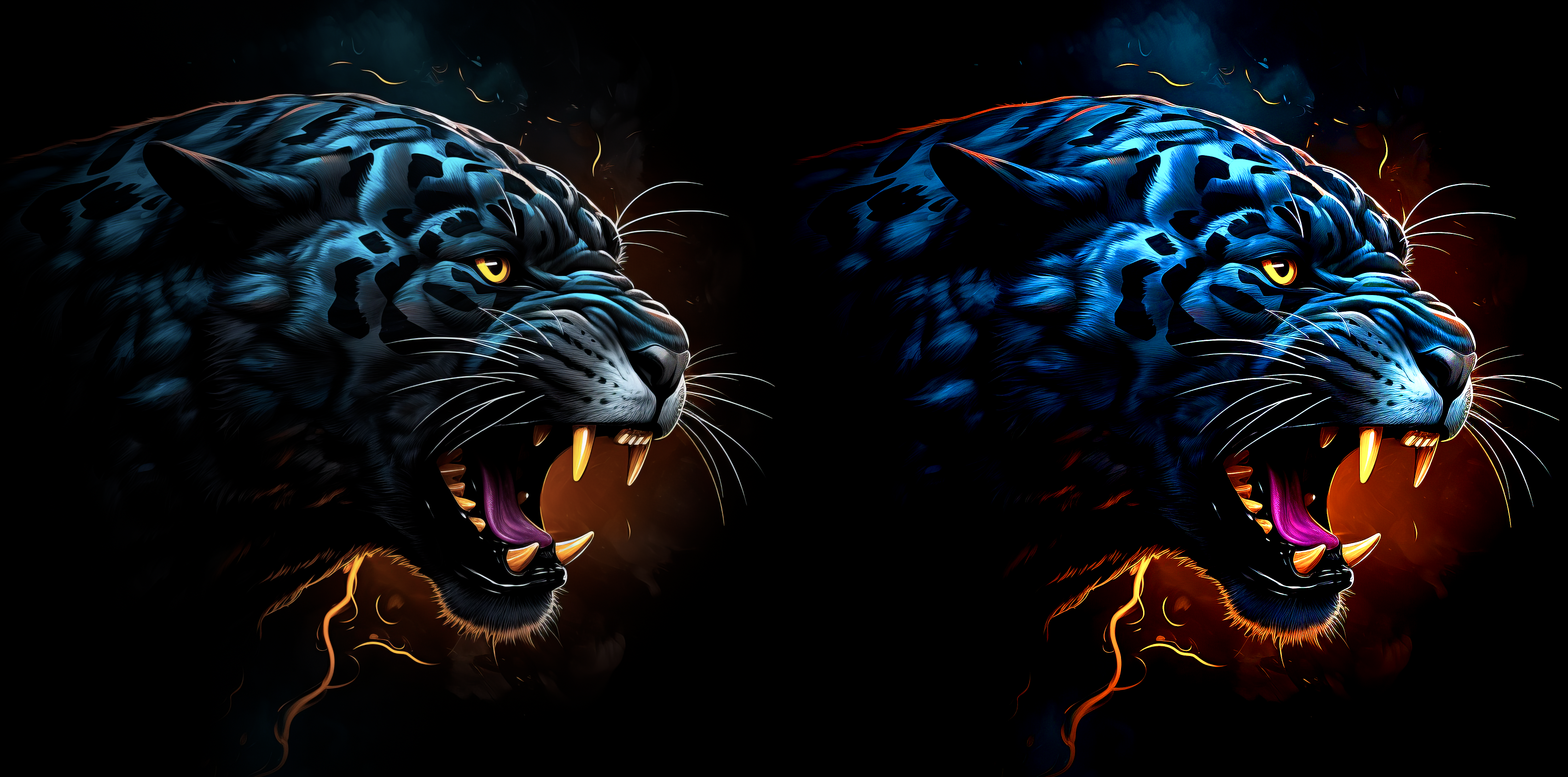
Finally, sharpen the image using the Unsharp Mask Filter by changing the Mode to Lab Color and applying the filter to the Lightness Channel only. That way the information in the color channels isn’t affected. Switch back to RGB mode and you’ll see how the details in the image are sharper. If you toggle back and forth in the History panel from before you apply these steps and after, you’ll see how these simple adjustments will take your image from great to exceptional (Image 10)!
Regardless of how you will print your image, all designers should run through this checklist of tips. Gathering all the necessary information at the beginning, setting up your file correctly, and saving the final file properly in the end will not only help eliminate problems and changes before production, but will make production run smoother and create a better-quality print.