
Streamlined Separation Steps
Three guidelines to put in place to prevent challenges and increase production efficiency
Key takeaways from this article:
- How to - Create artwork in defined groups and layers to streamline the separation process.
- How to - Design with the garment color in mind to ensure the artwork looks good on different shirt colors and avoids potential issues.
- How to - Streamline your colors where possible to keep the process of separation an easy routine in your shop.
The ironic nature of modern design, especially design for garment graphics, is that with all the new tools, features, and effects of graphic software, and AI art generators available, it’s easier than ever to create an absolute monster of a challenge to color separate for screen printing. Not only can you create an amazingly complicated and colorful image with most software, you can also do it faster than ever!
The issue comes when you show the artwork on the screen to your customer and they say, “Awesome! Now when can I have this order printed, and can you put it on two different color shirts?”
Don’t get me wrong, it always feels good to make the customer happy and get the order nailed down. But if you consistently create a monster in your art department that you then must try to figure out how to separate, it may be time to take a step back and put some guidelines in place to make the designs you create easier to handle on the production side.
Three Simple Steps
There is a common misconception that thinking about production while creating a design will hamper your creativity. In reality, having constraints and simple rules in place that guide you toward a production-friendly solution will make the artwork better instead of worse. Constraints and borders create pressure and momentum to innovate creatively in many areas, and T-shirt design is no exception.
There are three simple steps for creating artwork that will be color separated so that the final design flows right into production with the least number of headaches.
- First, create your artwork in defined groups and/or layers.
- Then make sure you design with the garment color in mind.
- Lastly, remember to streamline your colors where possible to keep the process of separation an easy routine in your shop.
None of these steps are hard, just remember to follow them when using all of the new tools available. Keep in mind that you will have to make adjustments to conform to these constraints occasionally to keep your designs production friendly for screen printing (Figure 1).
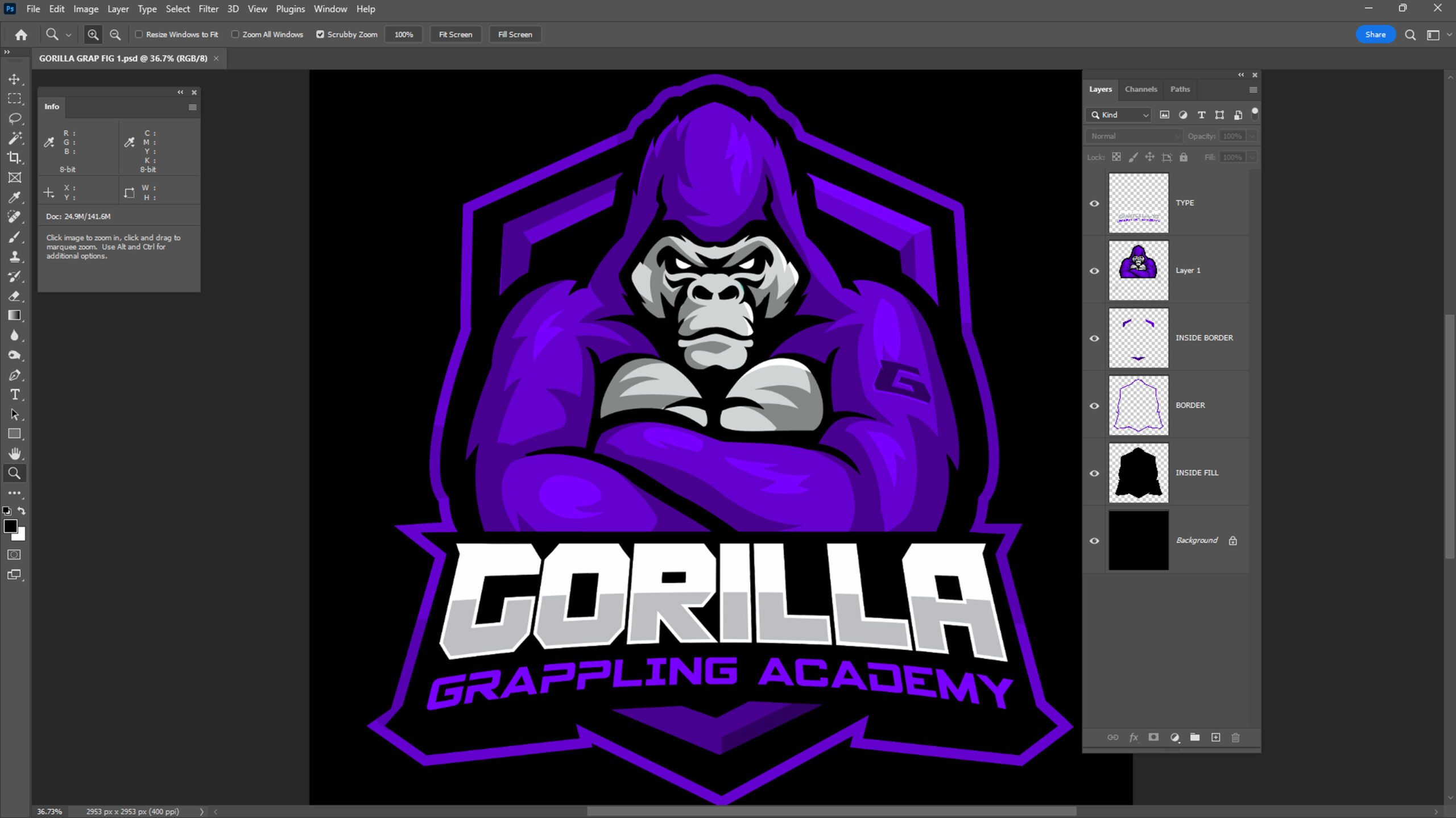
A quick note about printing methods: Screen printing is typically the best printing method for an order with a considerable volume of garments to be printed. Another method — like DTG or DTF — is the preferred method to decorate smaller volume orders (orders with less than 36 garments or less than a dozen garments per color in the print for greater complexity art, for instance).
DTG or DTF printing does not have the necessity of color constraints, but trying to use them for an order of 1,500 pieces doesn’t make a lot of sense when an automatic screen printing press could knock that out in a couple hours. So, when a customer requests a design for a large quantity that you know will be screen printed, keep these types of guidelines in mind.
Create Your Artwork in Groups and Layers
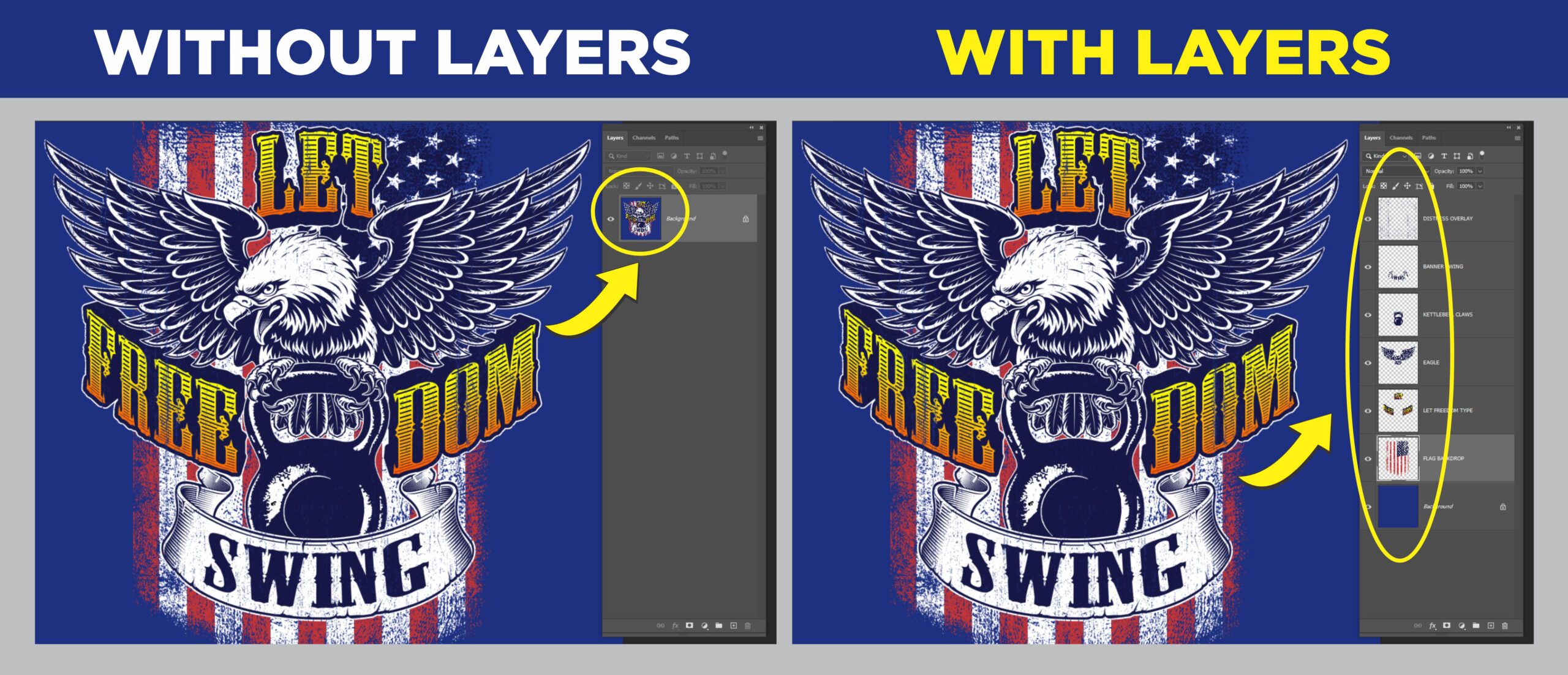
This is possibly the most important step to make your artwork easy to streamline for separation. The reason it’s so crucial is that when different elements of your design are separated by groups and layers inside of your design software, you can quickly create selections. That means faster separations.
The ability to select objects quickly, especially in complex designs, saves hours of creating detailed paths from a flattened complex graphic. Even the most complex designs can be tackled when layers and groups are available for each area because elements can be quickly selected and extracted from other areas to rapidly isolate and craft each color needed (Figure 2).
One thing to keep in mind for this guideline is that many effects that are applied to objects in design software won’t be “selectable” until you flatten or rasterize the layer that they are on. Unfortunately, once you do this, you can no longer edit the effect or easily create a selection from the original object without also including the effect as well.
A useful workaround for this is to keep a copy of the original layer with the effect active and put it in a group then turn off the visibility on that group (in Photoshop or Illustrator, deselect the “eye” in front of that layer group). Then you will have the ability to select the effect pixels after they are combined with the layer. You can also extract or define the original object separately by referencing the invisible layers in the group that were saved.
In the case that you are supplied artwork that isn’t in layers or at least separated from the background, it is always a good idea to request an original design file with layers and fonts if possible. If you cannot get a file that is defined with elements in groups or layers, the question becomes: Is the time that it will take to create selections for separation going to be billable or not?
A long-time loyal customer may not be charged for this step if the order is large enough, but it is time wasted if the design is complex.
One last thing to try if you have a flattened, complicated design is to use tools like Color Range in Photoshop. You can also convert a copy of the design into a different image/mode type and see if you can define selections easier using these “pre-selections” to help shortcut the job of making complicated paths manually. If you make a color range selection, you can sometimes expand or contract it and save it as a channel to then use part of it to create a defined selection to help in separating the image. Sometimes, you still have to do things the hard way, though, and create a complicated path to make your selections.
Design in Conjunction with the Shirt Colors to be Printed
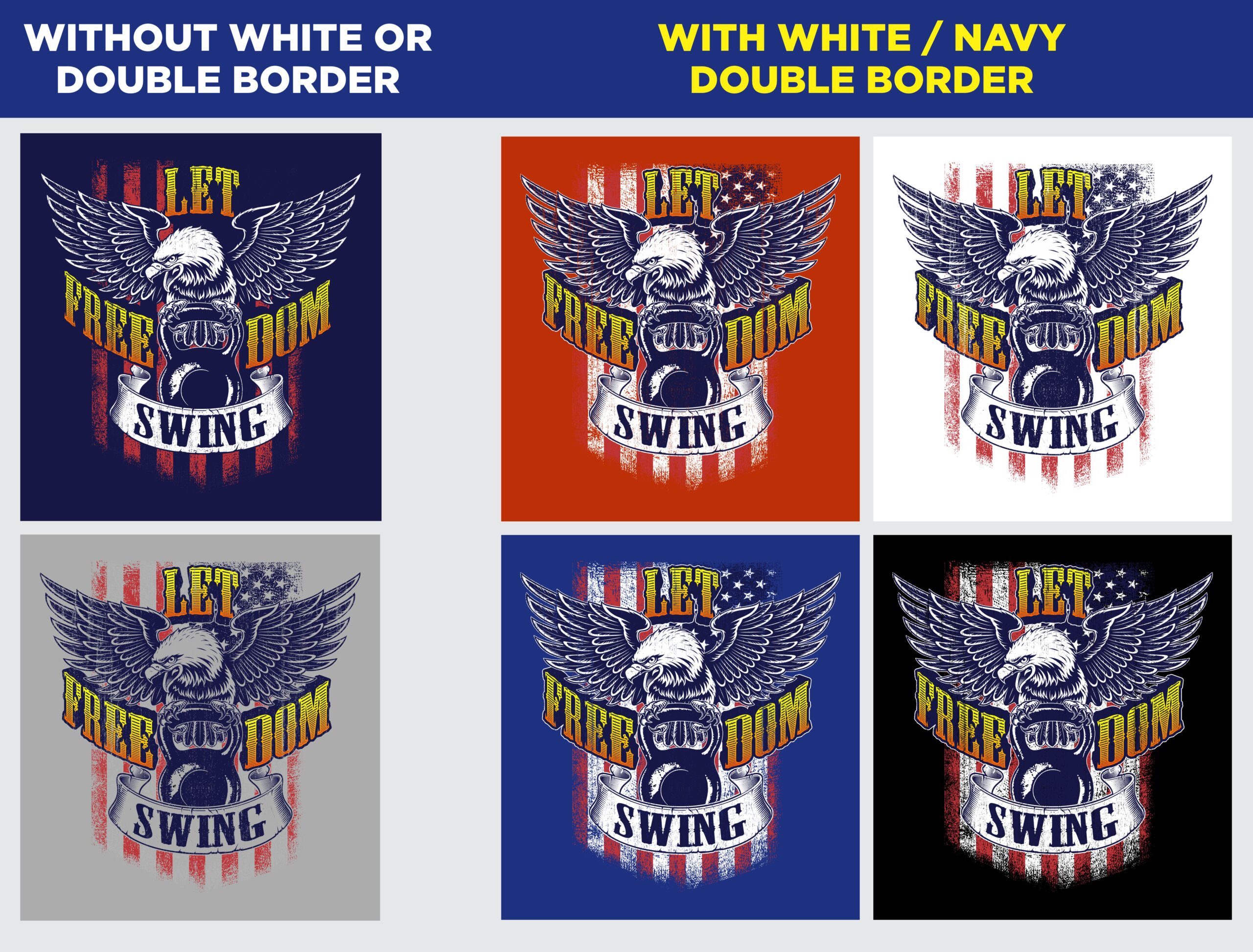
There is no guarantee that artwork approved for one shirt color will work well on another color. The best way to test it is to take the digital file, separate it from the background (this is a much easier job if the art is already in layers floating from the background), and drop the shirt color behind the design. Evaluate what it looks like.
The things to look for when testing designs on different shirt colors are numerous (Figure 3):
- The edge elements, type, and outlines of the design may not have enough contrast to show up properly. (For instance, if you have black type on a dark-colored shirt.)
- Areas of the design that allow the shirt color to show through may become awkward or incorrect if the value of the shirt color is different than what was originally intended.
- “Negative” prints that use a dark background to define the outlines of the image may look incorrect or lack definition.
- If the shirt color is close but not the same hue family as the main colors in the design, there could be a “color clash,” which can look unappealing and distracting.
- Elements in the design that were previously underbased minimally may need a much heavier underbase to avoid the shirt color affecting the image vibrancy.
- And there are more …
If you are designing from concept to final, it is crucial to have a clear idea of all the intended garment colors that will be used for future print runs so that the graphic can be planned and tested for them. When a custom design works properly with the background shirt color, it can greatly magnify the impact of the entire presentation of the finished product.
A garment color can be printed with a design featuring a strong complement that causes the colors in the design to pop off the shirt and create an exciting vibration of hues. In other cases, designs can be subtle, like tone-on-tone prints that work as accents to the garment and are appealing because they’re so subtle and work perfectly with the fabric color.
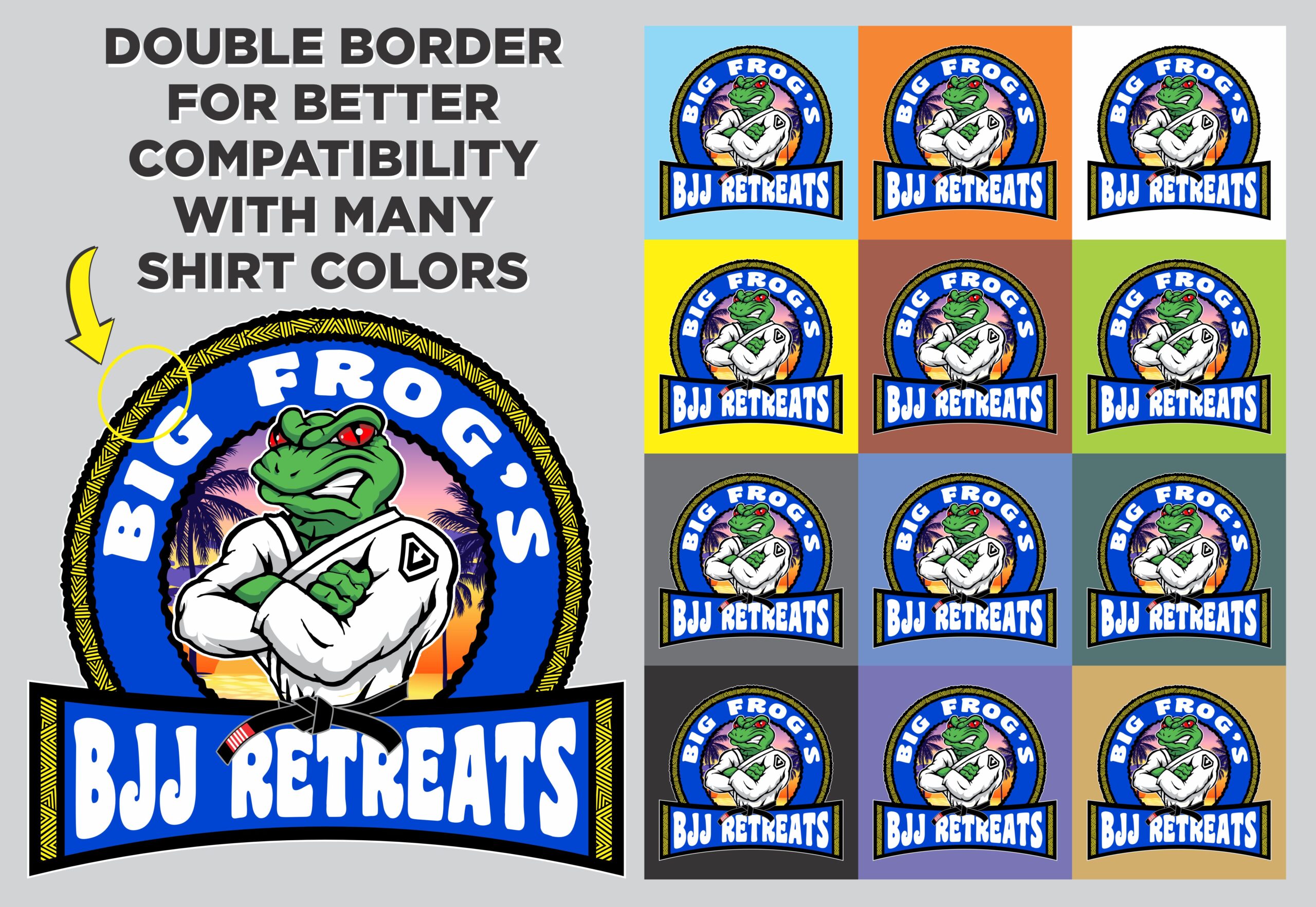
In the case of a customer that requests or submits artwork that needs to work with a huge array of shirt colors, there are a couple of steps you can take to make designs friendly with most colors (Figure 4):
- Test the design with both a light and dark outline next to each other. Then the shirt color will almost always have one or the other that will define an outline for the graphics (a black and white outline combo covers most garments).
- Keep your internal design colors muted or blended so that you don’t have large areas of flat colors that aren’t compatible with certain fabric colors.
- Adding a drop shadow to some design elements can be a way, similar to an outline, that allows a wider array of garment colors to work.
- Although it adds more ink volume, use a solid white underbase under any non-black areas of your image. Then use a white highlight screen to “sandwich” the print and contain it so that the garment color doesn’t show through the print like it might with a partially opaque under-base.
Streamline Colors Whenever Possible
The simple method for doing this is to “colorize” similar colors in an image to combine them into similar hues and therefore several color screens. In an ideal world, you would do this step prior to showing your design to your customer to avoid accidentally showing the design with more colors that you want to use when replicated on press.
Common areas of artwork that benefit from colorization include most “memory colors” and other design elements that show many hue shifts within a seemingly single color shape or object.
What is a memory color?
A memory color is an object that looks unnatural to the average person if the color is just slightly off. This includes water, wood, metal, grass, trees, flesh, and chrome.
There are many ways to simplify colors in a design. One of the quickest is to make a selection in Photoshop using the magic wand or other selection tool then click on the “colorize” button in the Hue/Saturation dialog box. You can then manage the output by sliding the saturation, brightness, and hue sliders to get the best single-color result.
If this effect is too flat for your final image, you can first make a copy of your selection and add it to an additional layer. Then colorize the extra layer and adjust opacity so that some of the previous color variations still show through just modified slightly to have less colors than the original (Figure 5).
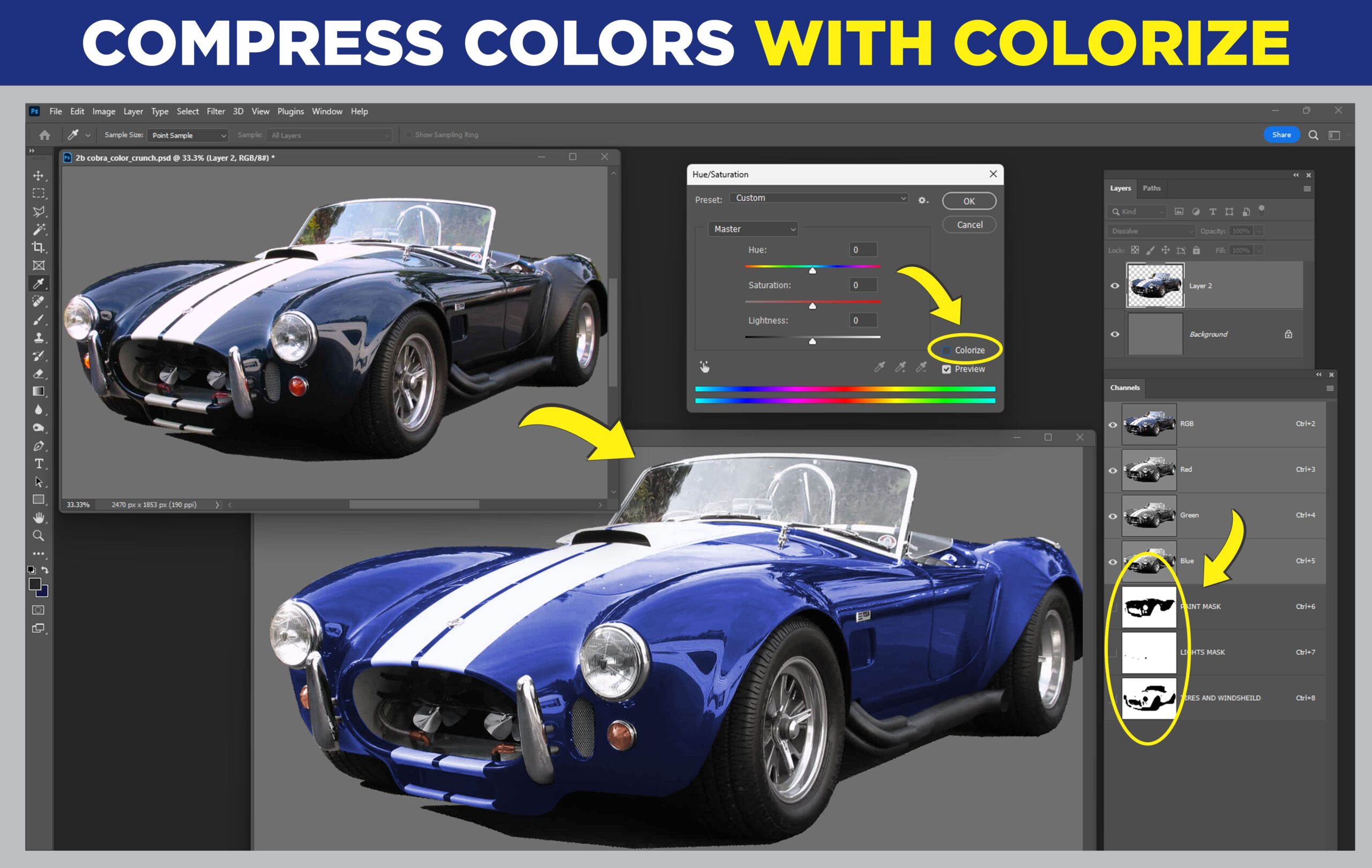
Using this process can make complicated designs with many colors easier to separate. It also tends to make a better finished print because the colors appear more distinct/less muddy.
It’s a good idea to do this process even if you are doing a 4-color separation of a realistic image because you will minimize the possibility of muddy color results, especially in memory color areas.
Streamlining Separation with Success
Following these three guidelines can be a great start to minimize color separation challenges. These habits will help both the art and production departments at the same time. The simple steps of using layers and groups to make selections easier, creating art with the garment color in mind, and minimizing unnecessary colors should provide you with the best odds of a successful separation and finished print you are proud of.