
Mastering DTG: 4 Advanced Printing Techniques for Out-of-the-Box Apparel Customization
How We Built a Branded Merch Package: DTG Techniques
Are you tired of the flat, predictable look of standard direct-to-garment (DTG) prints? The world of custom apparel is demanding innovation, and the path to higher profits lies in pushing your DTG printer far beyond basic placements. Learning how to offer out-of-the-box print placements or even adding some metal foil onto a design not only increases the value of your garment, but also cements your reputation as an expert with unparalleled DTG printing capability, setting your company apart in the competitive apparel decorating market.
While the pursuit of unique, high-impact designs is vital, successful apparel customization demands awareness of the "sweet spot" where creativity meets calculation. Pushing the complexity too far can dramatically slow down DTG workflow efficiency and increase material and labor costs, which can erode the final profit margin and create an unattractive final price point for your customers.
We are unlocking this creative potential by artwork generated through Google Gemini, demonstrating how AI can be a useful tool to create designs ready for advanced execution.
The following tutorials are designed to help elevate your creative offerings. They provide the expertise necessary to strategically determine when a technique delivers maximum visual impact without compromising efficient, sustainable production.
Tutorial No. 1 - Racerback Tank
Tutorial No. 2 - Above-the-Collar Printing
Tutorial No. 3 - Simple Foil Effect
Tutorial No. 4 - Advanced Foil Technique
Tutorial No. 1: Racerback Tank
This tutorial zeroes in on two specific advanced placements: the "front-to-back" over-the-seam print and precise logo placement within a racerback tank top. These techniques maintain low consumable costs (on par with standard front and back prints) but significantly expand your market reach by delivering the "wow" factor and superior softness only DTG can provide.
While the initial setup requires focused technical detail, this upfront investment ensures the remainder of the order flows faster and more efficiently.
Extra Items You’ll Need (Outside of the Printing Equipment):
- Mousepad
- Measuring tape
- Heat press pillow
- Access to AI Image generator
- Design software
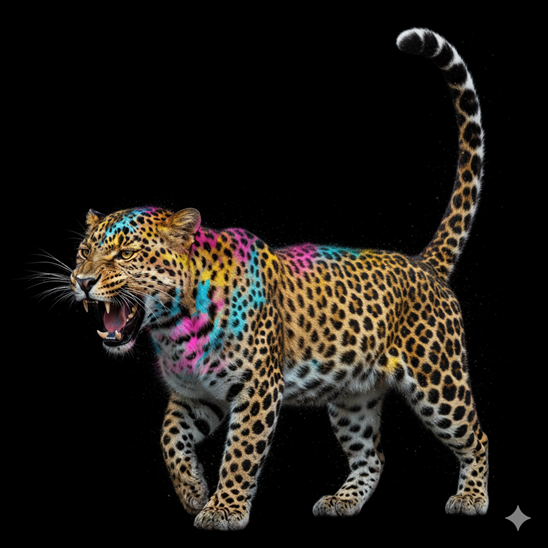
Step 1: Create your Graphic with AI
As mentioned, I created all my initial graphics with Google Gemini. I happen to have an affinity for DTG printing big cats so my prompt was: “Create a colorful side-facing leopard onto a black background.” I was happy with the initial generated result so that’s what we are going with!
Step 2: Editing AI-Generated Art with a Design Program
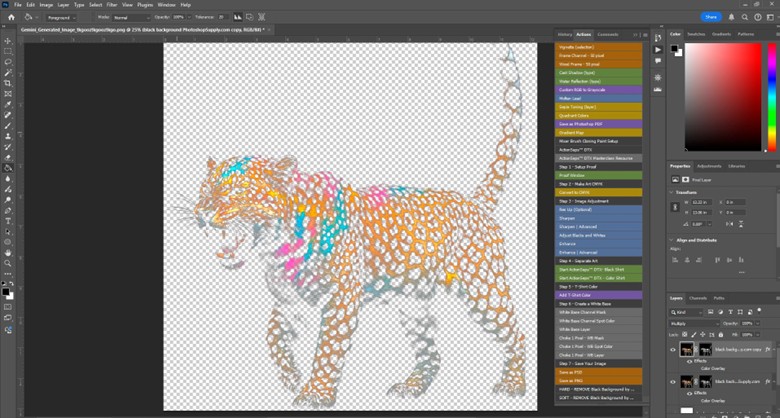
I’ll be honest, I’m not great at creating prompts. I have not been able to ask an AI Generator to create something “print ready” with a transparent background and setting the correct resolution, so I do this second step. If you’re better at talking to robots than I am, you can obviously skip this part. But, if you’re on the same boat as me, you’ll need to take what AI generated into a design program (I use Adobe Photoshop) to be able to remove the background and do any other enhancements.
If you aren’t aware, DTG is the only print method that can reproduce feathered edges onto a garment without creating halftones. You can achieve beautiful transitions and print designs that look like they are gradually fading into the shirt.
Since I already asked AI to create the design onto black background, I can utilize a “Black Background Removal Action” I downloaded years ago. If you use Photoshop, I highly recommend downloading one. But if you use a different design software, your goal is to remove the black background. Again, it’s OK if the edges are feathered. I also enhanced the color a bit, resized it, and changed the resolution to 300 DPI before exporting it as a PNG file. Below is the result you should strive for:
Step 3: Measure Garment
Since we are printing over the side seam, you’ll need to compare your design measurements and RIP software placements to the shirt width and decide how much of the design you want on the front panel versus the back. I decided I only want the back leg and tail to be on the back panel so I made sure to fold the tank top with the left side seam up and off-centered to the specifications of the artwork then measured accordingly.
I own the X2 DTG printer so my RIP software is TurboRIP. Different printer brands may have different platen sizes so you’ll need to adjust to your platen as needed.
Step 4: Pretreat Garment
To be able to utilize the white ink on this black garment, the shirt must be pretreated first. This is non-negotiable. The way you apply the pretreat can differ depending on what you have (hand treat with spray gun, pretreat machine, or buy shirts that are already pretreated) but as long as it’s done correctly, the results will be the same.
I use a Viper E3 pretreat machine for this article. If you own a different machine brand, the principles are the same. If you are spraying by hand, I suggest placing a sturdy piece of cardboard inside your shirt to give it structure and to ensure you’re spraying on the area that you already carefully measured out.
Side note: Prior to this, I already tested my pretreat amounts onto a garment to ensure I am using the correct density settings. I recommend for you to do the same. Not all shirts are alike and will need different amounts of pretreat coverage depending on the brand, style, and weight of the shirt.
Spray pretreat onto the predetermined print area then dry accordingly on your heat press. Since seams are involved, it’s best to “dress” the platen so it doesn’t leave an impression of the seam on the other side of the garment.
Step 5: Final Measurement on Printer Platen
Now’s the time to place your pretreated tank top onto the printer platen. Grab your measuring tape and do a final measurement before sending the job to your printer.
Step 6: Print and Cure
It’s go time! Ensure your table height is correct and push that print button. Afterward, cure your print according to your ink manufacturer’s specifications. Next, pre-press the tank top with the racerback centered and facing up to get ready it ready for the second print. Dress the heat press platen again or use a heat press pillow so the front and back seams don’t leave imprints on either side. Even with a heat press pillow, it left a moisture mark from the front collar to the back but it’ll go away after washing it for the first time.
Step 7: Pretreat Second Location
Once the first print is completed, it’s time to pretreat the second location.
Many of you may ask why didn’t I pretreat both locations first. In my experience, I have had better results pretreating, printing, curing then repeat. It helps prevent ink drawing to the opposite side of the shirt when printing. In case you mess up the first print, you don’t waste time and pretreatment on the second side.
Once done pretreating, dry as normal.
Step 8: Place Mousepad on Printer Platen
With DTG, you need the print area to be as close to the printhead as possible for a crisp print. The further away you are, the blurrier your print will become. Since the edge seams of the tank top are thick and sit on top of the printer platen, if left alone, the obstruction laser of the printer will read the seams rather than the print area, which may cause your print quality to go down.
To combat this, place a mouse pad on the platen in the area where your print will land. This will raise the print area higher than the seams (i.e., raise your platen to the appropriate height to achieve a sharp print). Not all mousepads are made the same, so you can stack them if needed and adjust your table accordingly.
Step 9: Print, Press, Complete!
Once you’ve arranged your mousepad appropriately, you can place the tank top, send the job to the printer, and print!
Again, because of the seams, I would thread the platen or put a heat press pillow in between the shirt to get a flush even press and prevent the seams from imprinting onto the other side of the garment.
Tutorial No. 2: Above-the-Collar Printing
The principles of this tutorial can be used to curve around the edge of the collar, like a gold chain, or any type of design that you want to begin above the bottom edge of the collar. I used the same design as the previous tutorial, except I included the “Branding Together Logo” within the design so it’ll just be one print.
Extra Items You’ll Need (Outside of the Printing Equipment):
- Mousepad(s)
- Scissors
- Measuring tape
- Colored pencil
- Non-stick parchment paper
- Heat press pillow
- Access to AI image generator
- Design software
Repeat Steps 1-3 … with Adjustments
If you want to create a new design for this tutorial, just repeat the first three previous steps to achieve what you want and get it into your RIP software. When looking at your software, keep note of where you want portions of your design to land. In this case, I want to make sure the leopard’s tail starts near the shoulder of the shirt and doesn’t cross too much over into the trim of the collar.
Step 4: Pretreat Your Garment without Getting the Inner Shirt Saturated
You do not want to get pretreatment inside the shirt where the neck opening is to avoid taking an extra step in drying that area. This can be easily blocked with a piece of nonstick parchment paper. Just slip inside the neck then pretreat as normal. Agan, when drying the treatment, either thread the platen or use a heat press pillow to avoid getting an imprint of the collar on the back of the shirt.
Step 5: Cut Mousepads to Desired Shape
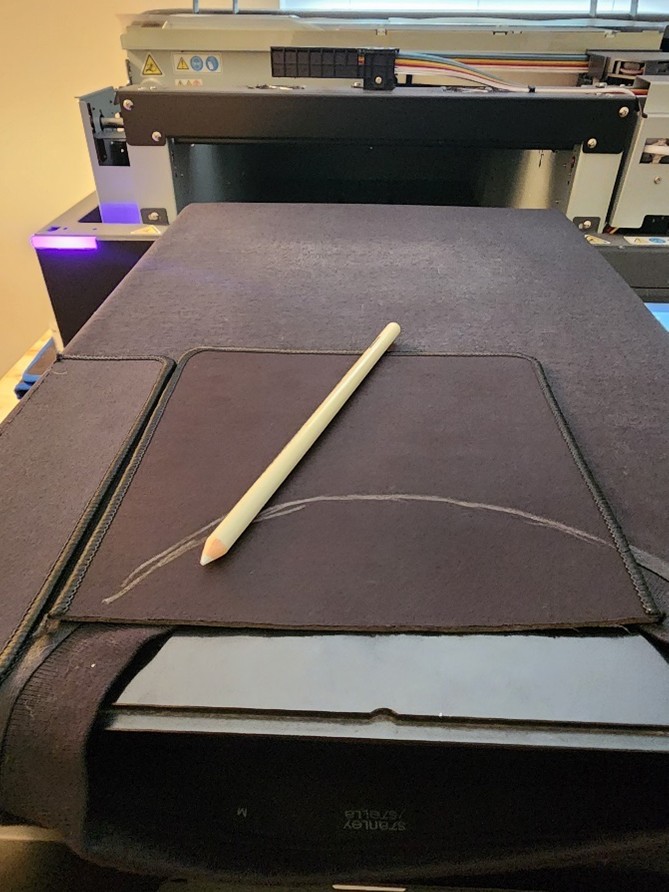
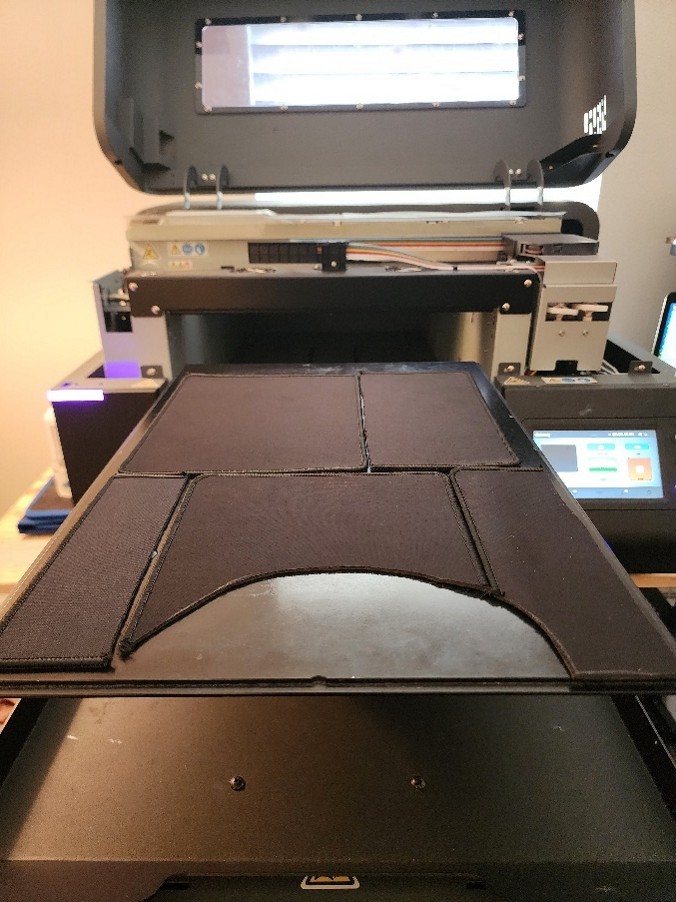
Grab a colored pencil and mousepad. Place a mousepad on top of collar of the shirt and do your best to draw an outline of the collar’s outer rim. Next, take your scissors and cut that portion out. We need to raise the shirt higher than that collar, so we need the collar seams to fall into the gap we made. Afterward, take another mousepad to cut little puzzle pieces to fill the area where a print will land.
Step 6: Place Shirt on Top and Print
When you place the shirt on top, make any final measurements with your tape measure and compare it to your RIP software. Next, take a look at the platen at eye level to ensure that everything looks flat and the print area is raised higher than the collar.
Once you feel confident that everything looks good, send the job to your printer then print as normal, cure, and you’re done! For any of the same prints afterward, leave the mousepads in place and just set the shirt on top. Just that little bit of extra time makes the final outcome worth it in the end!
Tutorial No. 3: Simple Foil Effect
It’s time to let your prints shine … literally! Applying a colored metal foil to a DTG print is simple and for just a few cents worth of foil, increases your profit per shirt by a few dollars.
A few things to keep in mind: Not all foils are made the same. Some are a hot peel, some cold, and the opaqueness of them can differ. This tutorial was done by foils sold by PrinterBiz.com but there are other foil brands out there for you to try and test with.
Also keep in mind: No foil peels off with 100% opaqueness. When choosing your foil colors, place a similar color print underneath if you want it to look as opaque as possible (i.e., gold/yellow under gold) Since there is some translucence with the foil, it’s not a good idea to place a clashing color under the foil color you choose or just use white ink and foil on top. You definitely want a color layer over the white ink.
Extra Items You’ll Need (Outside of the Printing Equipment):
- Metal foil roll(s)
- Scissors
- Access to AI image generator
- Design software

Repeat Steps 1-4 … with Adjustments
Foil works best if there is negative space in the design. If you placed foil over a square image, you’ll get just that — a large square of foil. By removing outlines or areas of the print that you can utilize the garment with, you’ll end up with a much better outcome.
I asked Gemini to create a different pose of the leopard for this tutorial then removed the black background and leopard spots as before.
I do a normal placement for this lesson, but if you wanted to utilize anything you’ve learned with the previous two tutorials, then I say go for it! Once you are happy with your design, pretreat your print area and dry as before.
Step 5: RIP and Print Your Design
There are no special settings for your white underbase or color layer within the RIP software. If you plan to cover your entire image with foil, then it wouldn’t be a bad idea to reduce your white. You don’t need a normal coverage to allow the foil to stick. However, if only a partial amount of your final print will be foiled, then use the higher-quality settings you would normally use as if you weren’t using foil.
Once the print is completed, put the shirt on the heat press platen but DO NOT cure it yet. The foil sticks to wet ink only.
Step 6: Cut and Apply Foil to Cover Desired Areas
Grab your scissors and cut the foil to the shape of your print then place it on top. For maximum opaqueness, set your heat press to heavy pressure. Make sure you put the foil colored-side up then cover with a heat press cover sheet and cure as normal.
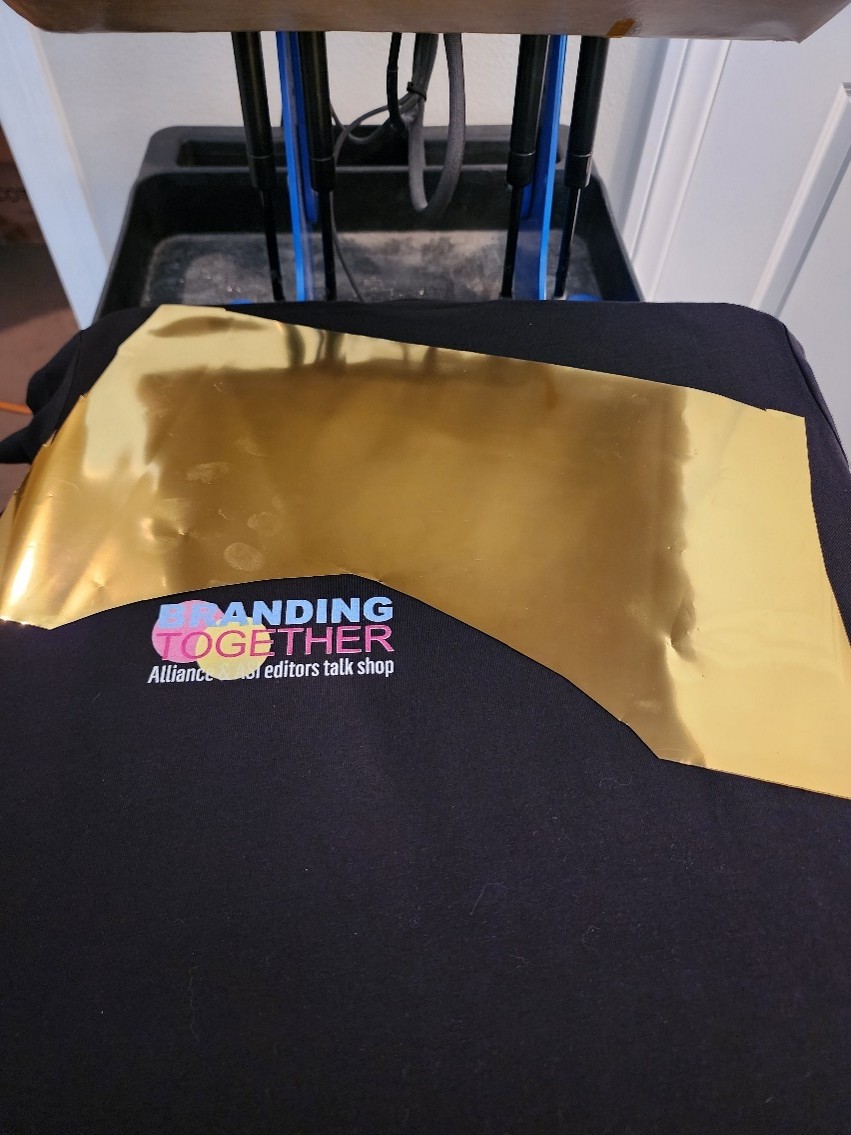
Step 7: Peel Back Foil and Profit!
I recommend peeling quickly to prevent glitter sticking to the pretreated areas of the shirt. Afterward, drag a junk shirt or clean hand towel across the design to remove any excess foil. Super simple, right? Hardly any time added and just a few cents extra in consumables can help bring your prints and profits to the next level!
Tutorial No. 4: Advanced Foil Technique
If you want to add foil for the extra shine but still want some of the colors of your print to show through, then this final tutorial from my Out-Of-The-Box series is for you! We will be using multiple foil colors and adding an extra yet simple step to achieve a weathered foil look.
Extra Items You’ll Need (Outside of the Printing Equipment):
- Metal foil rolls (various colors)
- Scissors
- Access to AI image generator
- Design software
Repeat Steps 1-5 … with Adjustments
For my final act, I asked Gemini to create a design of the king of large cats: the lion! I also wanted a him to wear a crown so I wrote the following prompt: “Create a forward-facing lion wearing a crown with just his face and mane on a black background.” I got what I wanted immediately then just like before, brought the generated artwork into Photoshop to remove the black background, placed the Branding Together logo, and made color adjustments as needed.
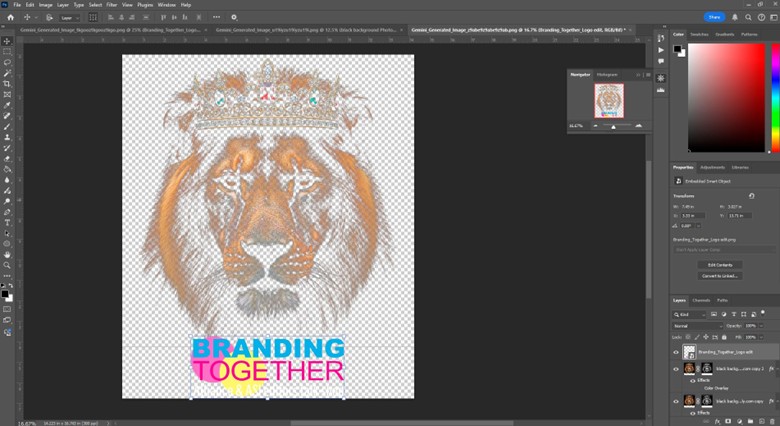
I then placed it onto my RIP software and kept my settings at default. I sent the job to print onto my pretreated shirt, then placed the freshly-printed garment onto my heat press
Step 6: Cut, Crinkle, Place, Repeat
Next, cut the foil into general shapes like the design. It doesn’t have to be perfect, but if you don’t want the foil applied to a certain area, make sure you don’t cut your foil sizes too large. To get the weathered foil look, crinkle your cut foil. The more you crinkle, the more weathered your final outcome will be.
Once you’ve crinkled the foil to your heart’s desire, begin placing the pieces onto the printed areas that you want to cover.
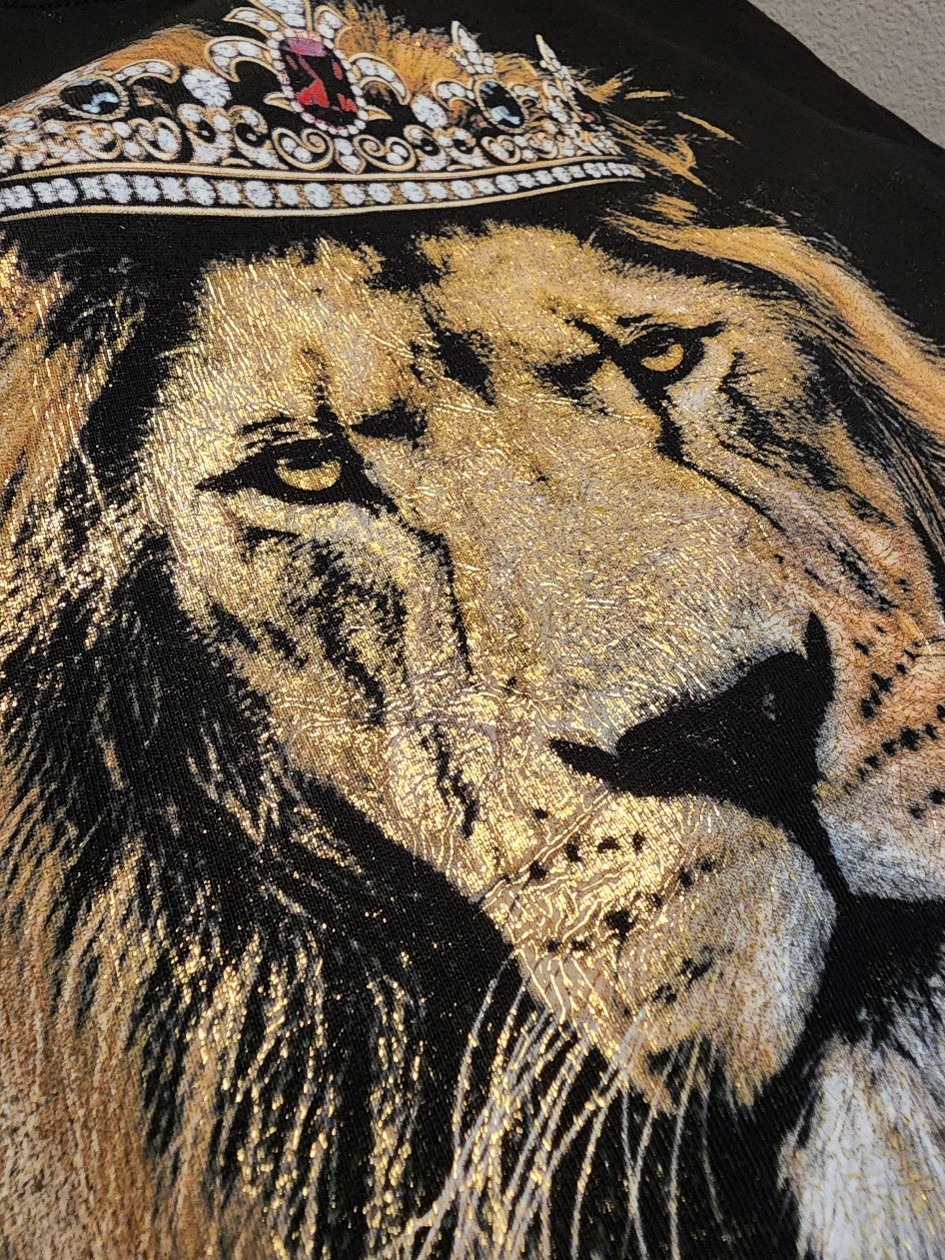
Outside of the ruby in the middle, I left most of the crown untouched; the goal is to get a wow factor without spending too much time per print. After you’ve placed foil in all the areas you want to cover, cover with a cover sheet and cure as normal.
Step 7: Marvel at What You Just Created
Peel all the foil off after the ink has been cured. As you can see, this method allows more of the color of the ink beneath to shine through and creates a beautiful multi-dimensional look!
Final Thoughts: Your New Frontier
Congratulations — you’ve officially moved beyond the basics and unlocked the next level of DTG capability! This is tangible proof that mastering advanced placements and texture techniques like foiling yields immediate, high-value results. Don't let these new skills sit idle; use them immediately to impress key clients, launch a new premium line for your brand, or simply demonstrate your unmatched expertise on social media. The future of DTG custom apparel is innovative and textural — now you are equipped to lead it.